How to Export Glass Register Donations
This guide shows how to export donation data from Glass Register for reporting or CRM integration.
Create an Export Profile
An Export Profile defines which donation fields to include in your export file.
- Log into Glass Register and navigate to Export Profiles.

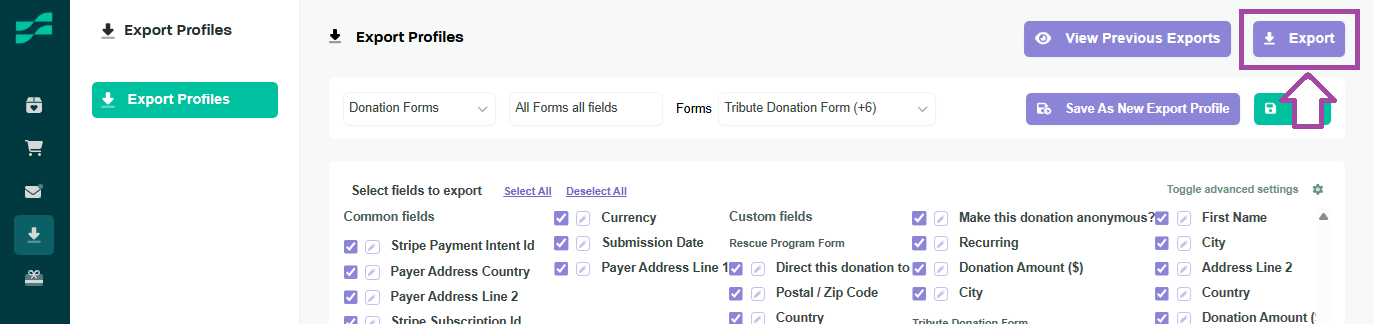
- To choose which donations should be included in the export, select a form from the Forms dropdown. Alternatively choose "All Forms" to include donations from any of your forms in your export.
- Select the fields to export (e.g., Donor Name, Amount, Date). If you want to include all fields in your export, click "Select All."
- Click Save As New Export Profile and give your new Export Profile a name (e.g. "All Donations," or “Monthly Donations”).
- If you will be exporting donations to import into your CRM or accounting system, make sure you are including all of your CRM's required fields in your Export Profile (check your CRM’s import requirements).

If you will be exporting donations to import into your CRM or accounting system, make sure you are including all of your CRM's required fields in your Export Profile (check your CRM’s import requirements).
Export Donation Data
- Navigate to Export Profiles List.
- Select the Export Profile from the dropdown menu.

- Click Export (top right).

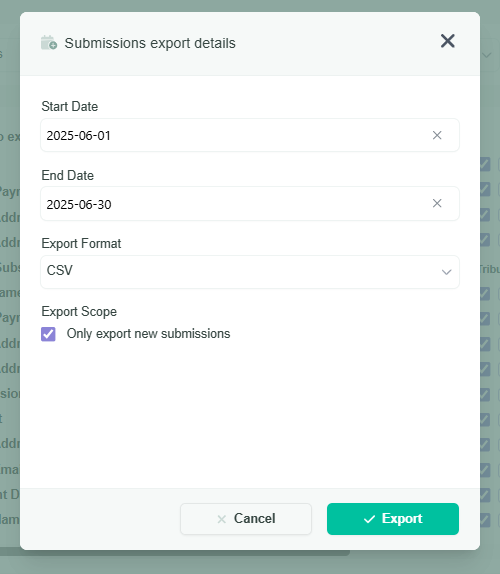
- Set export options:
- Start Date and End Date: Define the date range for donations you want to include in your export.
- Export Format: Choose CSV or Excel.
- Export Scope: Check to export only new submissions since the last export, or leave unchecked for all data.
- Click Export to download the file to your default download folder.
Tips:
- Save multiple profiles for different forms or purposes (e.g., “Annual Report” vs. “CRM Import”).
- Verify the exported file opens correctly in your CRM or spreadsheet software.
Related Articles
Recurring Donations in Glass Register
Glass Register supports one-time and recurring monthly donations processed via Stripe. This guide covers how recurring donations are processed in Glass Register and how to manage them. How Recurring Donations Work After a donor submits a recurring ...
Add a Thermometer to Your Glass Register Donation Webform
Overview The Thermometer is a powerful social proof tool in Glass Register that visually displays your fundraising progress toward a campaign goal. It motivates donors by showing real-time contributions, including optional offsets for external gifts. ...
How to Add a User in Glass Register
This guide explains how to add new users to your Glass Register account and ensure they can access the system. Add a New User Log into Glass Register Navigate to Settings Click User Management Select Add User Enter the user’s details: User Name: A ...
How to Create E-Cards in Glass Register
E-Cards provide a powerful way to create an emotional touch point for your donors and inspire more giving. When you're using E-Cards, a donor will have the option to send a beautiful, personalized e-card in honor or memory of someone special. Whether ...
Why does Glass Register or Stripe need my board member information?
Glass Register uses Stripe as its payment processor. Many organizations getting started with Glass Register do not yet have a Stripe account, and even those who do, may not have filled in all the information about their board members when setting up ...
Societ Academy
Learn what you need to know, any time. Free!
- High quality training on demand - sessions are available every day, so you can access training that fits into your schedule.
- Training sessions that are easy to follow - helpful tips throughout each session, and access to training moderators ensure your questions get answered.
- A certificate of completion - you can request a certificate of completion for every session you attend.